


New requirements for leisure and health centre visitors to demonstrate they are fully vaccinated against Covid-19 before being granted entry are changing the game for facility operators.
Many Australian states have already introduced vaccine certificates, and they will be in widespread use in New Zealand in the weeks ahead. While these certificates play an important role in keeping communities safe, they are also adding an extra level of complexity for leisure facility managers and front office staff.
Fortunately, Jonas Leisure software simplifies the process. This article outlines key steps to take in our Envibe, Centaman and Gladstone software platforms to make navigating vaccine certificate requirements easier for staff and customers in the months ahead.
The ‘Flags’ functionality in Envibe can be used to record members who have shown a staff member a vaccine certificate as evidence they have been double-vaccinated against Covid-19.
This ensures members do not have to present their vaccine certificate every time they visit a facility, leading to shorter queues at reception and a better experience for facility users. Envibe’s ’Flag’ settings can be recognised by compatible access control gates, allowing members to use their membership cards to swipe in at a facility’s security gates if their vaccine certificate has previously been verified by your facility staff.
Step 1: Create a flag in Data Management > Flags and give it a name (e.g. ‘DV’ for ‘double-vaccinated’).
Step 2: If integrating with your access gates, go to Data Management > Access Profiles and select the access-controlled entry points at your facility you want to restrict access to based on whether a member has the new ‘double vaccinated’ flag against their name.
Step 3: When a member visits your facility and presents a vaccine certificate, open their profile in the ‘Contacts’ section and tag them with the ‘double-vaccinated’ flag you have setup.

Recording vaccine certificate expiry dates, if needed in your area
It is also possible to use Envibe functionality to record a date at which a vaccine certificate expires, if that is a requirement in your location or is introduced in future.
Step 1: Go to Data Management > Membership Categories and set up a new free membership category with an appropriate name (e.g. Vaccine passport membership).
Step 2: Navigate to Data Management > Membership Types, select the new category you created and create a membership type of the same name (e.g. vaccine passport). Set up an expiry date for this membership type based on what is required by legislation in your area or your facility’s policy (e.g. six months).
Step 3: Navigate to Data Management > Items and create a new ‘item with an appropriate name (e.g. ‘Vaccine passport membership’). Edit the new item and utilise the ‘Components’ function to link it to the relevant membership type you created in Step 2, above. Ensure the ‘Default price’ for this item remains as $0.
Step 4: When a member next arrives at your facility, you will then register them for the new membership item you have created (e.g. ‘Vaccine passport membership’), in addition to any other memberships they hold. Just visit the members’ profile in the ‘Contacts’ section of Envibe and process the new membership by clicking the ‘New membership’ button and selecting the membership item you set up in Step 3 from the ‘Available memberships’ list.
Step 5: The final step is to select the ‘Start date’ for this membership type. This should be the date on which the expiry countdown begins; it is likely to be the date of issue for their vaccine certificate or the date they received their first or second dose of the Covid-19 vaccine, depending on Government requirements in your area. The default ‘expiry’ date is based on the ‘End date’ you set up at Step 2 of this process.
Optional: If desired, Envibe’s reporting functionality can be used by authorised staff to view which members’ vaccine certificates are expiring in the near future. SMS or email ‘Trigger messages’ can also be set up in Envibe to remind members to show their new vaccination certificates at reception if their old ones are nearing expiry or have expired.
Watch this video to see how Envibe’s ‘flag’ functionality makes the process easy.
Jonas Leisure’s Centaman platform can make managing access based on a members vaccine status easy. Setting this up requires a few easy configuration steps.
The steps outlined below will initially ensure swipe card access to your facility is disabled until a members’ vaccine certificate has been seen by staff member at reception. Once a vaccine certificate has been verified, this process allows a staff member to remove the access restrictions so that a facility member can once again swipe in as normal using their membership card.
Step 1: To restrict access to members who have not yet presented a vaccine certificate, navigate to Membership > Other Database Setup > User Defined Fields and create a ‘Membership’ field with an appropriate name (e.g. ‘Vaccine certificate pending’). If you want this to be mandatory for all members, select ‘True’ in the ‘Required’ column.
Step 2: The next step it to apply the new user defined membership field to a new membership type with an appropriate name (e.g. ‘Vaccine certificate pending’) that will be applied to members. To do this, go to Membership > Membership Type and create
Step 3: The final stage in restricting access for members who have not yet presented a vaccine certificate is to add the new setting to all of your members by going to the ‘Utilities’ module and selecting ‘Attach selected membership to members’. You should then select the membership type you set up in Step 2 (e.g. ‘Vaccine certificate pending’) and check the ‘Only if membership not already attached’ box.
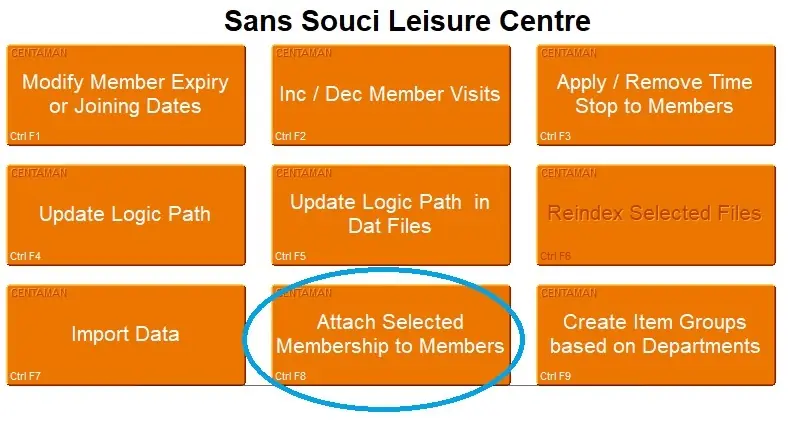
If your Centaman system is integrated with your access gates, this process can be used to restrict access to everyone until they have shown a staff member their vaccine certificate and that staff member has removed the membership type from the member’s profile.
Step 4: Once members have presented a valid vaccine certificate to a staff member, their card access to your facility can be restored to ensure they do not need to present the certificate on every visit. This can be done in one of two ways:
POS Module: Bring up their membership profile, select the tile for the membership that has been set up (e.g. ‘Vaccine certificate pending’) and change the expiry date to a date in the past. This will disable the restriction to their access.
Membership Module: Open ‘Search’, bring up their member profile, select the tab at the bottom of the screen for the new membership that has been set up (e.g. ‘Vaccine certificate pending’), right click on the white area and choose ‘Delete membership’.
On our Gladstone platform, providing card-swipe access to a facility to members who have previously presented a valid vaccine certificate requires a number of steps within the Membership Wizard.
The process outlined process allows management of members’ vaccine status via the upload of relevant data to the Gladstone system as a CSV. The process first requires the set up an ‘unvaccinated’ membership type, which can be applied to all members. Once a staff member has viewed a valid vaccine certificate, the ‘unvaccinated’ membership type can be removed or changed to ‘vaccinated’, removing restrictions on access and enabling access once again using a valid membership card.
In Gladstone, the following steps are recommended:
Step 1: Open the Membership Wizard and select ‘Correspondence Office Message’ from the dropdown ‘Functions’ list. Ensure the ‘Automatic Step’ box is ticked, then click ‘Next’.
Step 2: Make sure all ‘Allow modification’ boxes on Step 2 of the Membership Wizard are unticked. You may need to select ‘Current User’ alongside the ‘Handler’ section to ensure all of these boxes can be unticked. Once this is done, click ‘Save’.

Step 3: Create an ‘Export file definition’ to set up an exportable list of all users. To do this, create a new Membership Wizard with the ‘Correspondence Office Message’ step only and click ‘Save’.
Step 4: Go to Config > General > Export File Definition > New. Add a name and description for the list and use the arrow to move the ‘Member ID’ field to the ‘Selected Fields’ list on the right. Once done, select the ‘Output format’ and choose ‘CSV’ as the desired file extension.
Step 5: Go to the ‘Report generator’ section of Gladstone to run the ‘Export file definition’ you created above.
Step 6: Add the ‘unvaccinated’ membership type you have setup to all members. Go to Modules > Batch wizard > Add name and select the newly made Membership Wizard you created in Steps 1 and 2, as well as the CSV file you downloaded at Step 6. Make sure to select ‘Yes’ alongside the ‘Header record’ field if the ‘output header’ was ticked at Step 6 above. If it was not ticked, then choose ‘No’ for ‘Header record’. Once done, click ‘Save’ and then ‘Apply’.
Step 7: When a member comes into the facility, an Office Message will now pop up on the screen of reception staff. Staff can then verify the member has shown a vaccine certificate before removing the access restriction that has been put place by clicking ‘OK’ and then removing the relevant ‘Correspondence Office Message’ for that member only.
Public health policy and requirements will continue to evolve in Australia and New Zealand, as we’ve seen throughout the entire COVID-19 pandemic. At Jonas Leisure we are committed to responding in whatever ways we can to make complying with these as simple as possible for users of our leisure management software.
If you have any requests or suggestions for ways we can continue to enhance our software to make life easier for you, don’t hesitate to email our Support Team.
Envibe users can also make use of our Customer Voice support portal, where they can login to suggest new features or upvote features suggested by others.